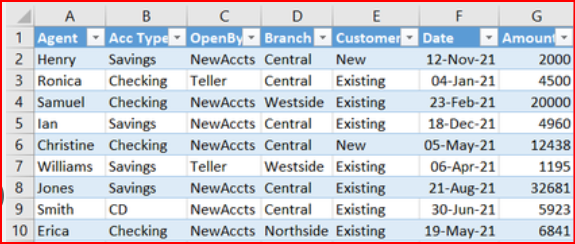
Modern GRC platforms are evolving rapidly as teams demand more flexibility in how they capture, review, and manipulate operational data. While structured fields remain essential, users increasingly want a dynamic area where they can model calculations, track notes, compare values, or collaborate on process details—without leaving the system. Spreadsheet-like interfaces are the natural solution. They’re intuitive, powerful, and require almost no training. Integrating an embedded spreadsheet per record or requirement can dramatically improve the usability of a GRC system, especially one that handles complex workflows or documentation management.
However, adding spreadsheet capabilities inside a Record or Requirement is not trivial. You need dynamic loading, autosaving, multi-sheet support, formatting persistence, and seamless alignment with user permissions. You must also ensure it works in a multi-tenant architecture, where every tenant’s data and operations are isolated. The underlying challenge is building something that feels like Google Sheets or Excel without the overhead or performance costs of integrating a fully external tool. JSpreadsheet (community edition) provides an ideal balance—it’s lightweight, powerful, and fits well inside Tailwind + Livewire applications.
For many organizations, spreadsheets bridge the gap between structured metadata and real-world working documents. During audits, assessments, onboarding, vendor reviews, and risk analysis, users often create scratch-pads of information that don’t conform neatly to pre-defined forms. If the system doesn’t provide that space, users immediately move to external spreadsheets—breaking traceability, version control, and tenant boundaries. Embedding spreadsheets directly into GRC objects solves this problem while increasing platform stickiness and user satisfaction.
Another advantage is persistence. If spreadsheet edits automatically save in real time, the system becomes a living workspace rather than a static form viewer. When users return to a record, their data appears exactly as they left it—multiple tabs, formatting, column sizes, and all. This reduces friction, eliminates duplicate work, and supports collaborative teams that edit information over multiple days or weeks.
The final goal is a “Sheets” tab that feels native, loads seamlessly, stores changes automatically, and supports multiple spreadsheet tabs within it. With the right design, this becomes a major value-add for your GRC platform—turning each Record or Requirement into a flexible, semi-structured workspace that adapts to whatever the user needs.
Functional Needs and Specific Behavior
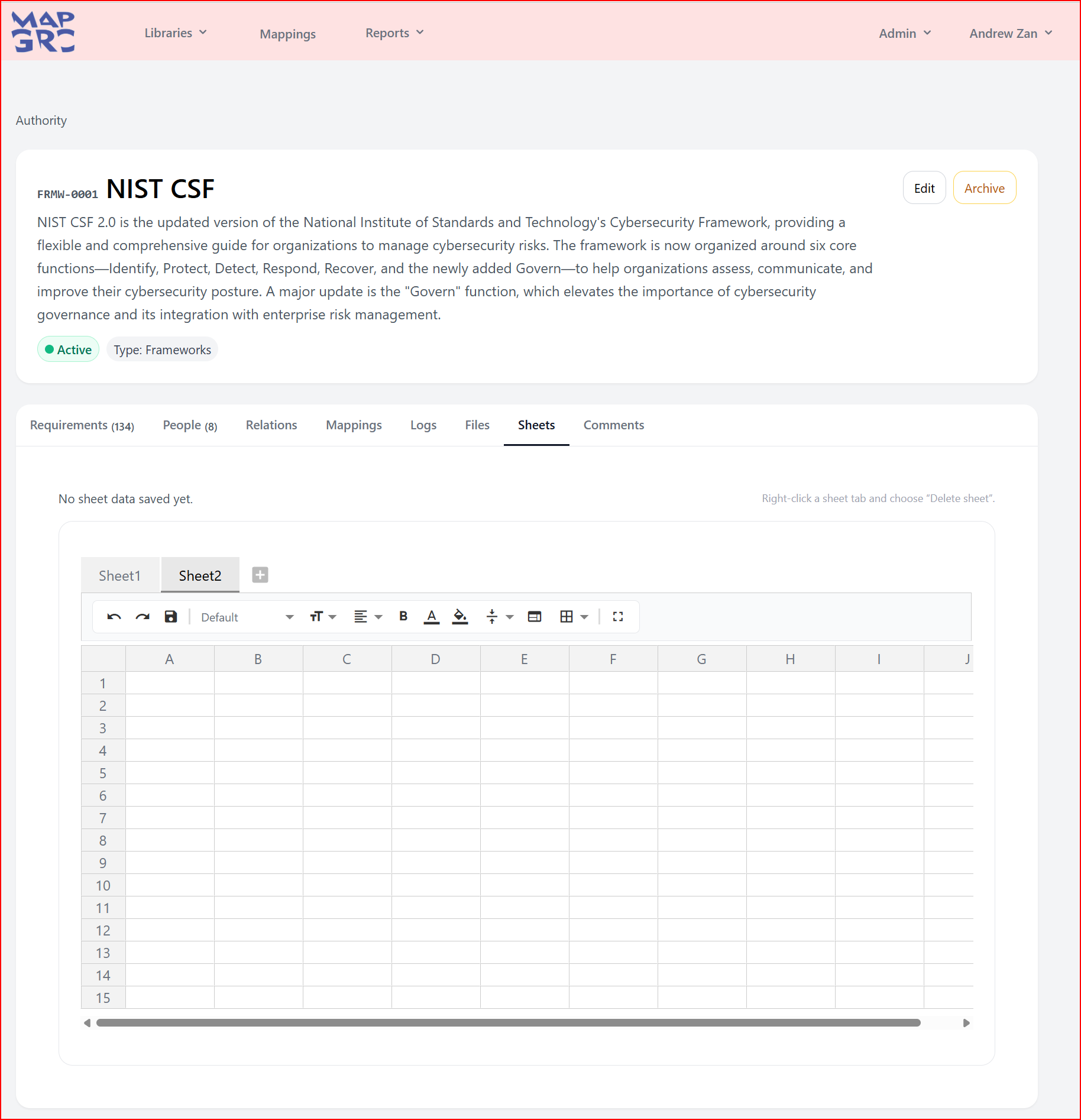
The system must introduce a new tab labeled “Sheets” for every Record and Requirement. When selected, this tab should load a jspreadsheet instance only on demand (lazy initialization). Users should be able to add multiple internal sheets (Sheet1, Sheet2, etc.), rename them, delete them, and interact with them just like familiar spreadsheet tools.
The spreadsheet must autosave on every edit using a debounce mechanism to prevent constant network calls. All sheet data—including sheet tabs, cells, formatting, and configuration—must be serialized into JSON and stored in a dedicated database table tied to tenant_id and a polymorphic relation. When users revisit the tab, the spreadsheet reloads exactly as they left it.
The layout should feel natural inside a modern Tailwind-based UI. Vertical space expands dynamically as rows grow; horizontal scrolling is enabled automatically; and a full toolbar is visible for essential spreadsheet operations. The tab label should show an icon if any sheet contains actual data.
Finally, permissions must respect the platform’s rules: users with edit access can modify a sheet; view-only users see a read-only version; and cross-tenant access is strictly forbidden.
Complete Implementation Plan (Technical Specification)
1. Add the New “Sheets” Tab
- Add a new tab labeled “Sheets” to both Records and Requirements.
- Hide the spreadsheet until the tab becomes active.
- Append a small icon to the tab label if saved sheet data exists.
- Update the icon state dynamically after the user makes their first edit.
2. Build the Database Layer
- Create a new
sheetstable with the following columns:- id
- tenant_id
- sheetable_type
- sheetable_id
- data (JSON)
- metadata (JSON)
- created_by
- updated_by
- timestamps
- Use a polymorphic relation:
$record->sheets()or$requirement->sheets() - Enforce tenant scoping on all queries.
- Create the row lazily on first edit.
3. Backend Actions for Load + Save
- Implement a load action that:
- Validates tenant + permissions
- Returns existing JSON or a default empty configuration
- Implement a save action that:
- Accepts full JSON representation
- Validates structure
- Upserts sheet data
- Stores updated_by and created_by
- Return JSON responses suitable for Livewire or Alpine.
4. Initialize jspreadsheet
- Only initialize when the tab becomes active.
- Use configuration with:
- toolbar enabled
- multiple internal sheet tabs
- horizontal scrolling
- resize columns
- default rows/columns on first load
- If data exists: hydrate all tabs, cells, metadata, and formatting.
- Prevent reinitializing the spreadsheet on internal tab switches.
5. Add Autosave Logic
- Listen for jspreadsheet
onchangeoronafterchangesevents. - Implement a JS debounce timer (1–2 seconds).
- On save, serialize the full sheet state:
- Active tab info
- All sheet tabs
- All cell values
- Column sizes
- Formatting
- POST to the save endpoint.
- Show “Saving…” then “Saved” indicators.
- On first save, update the Sheets tab icon.
6. Reloading and Revisiting the Tab
- If user returns to “Sheets” without reloading the page: reuse the existing jspreadsheet instance.
- On full page reload:
- Wait until “Sheets” is clicked
- Load JSON from backend
- Reinitialize spreadsheet with all data
7. Layout and UX Requirements
- Spreadsheet height grows automatically as rows increase.
- If height exceeds viewport target (e.g., 75–85% of screen), allow page-level scrolling.
- Horizontal scrolling enabled for large column sets.
- Show spreadsheet toolbar at top.
- Maintain clean responsive behavior on smaller screens.
8. Sheets-Has-Data Detection
- Detect non-empty cells and store a metadata flag or count.
- On load: show icon if count > 0.
- After autosave: recalc and toggle icon accordingly.
9. Permissions and Multi-Tenancy
- Users with edit permission get full edit capabilities.
- View-only users see read-only mode.
- Deny access entirely if user cannot view the parent Record/Requirement.
- All queries filtered by tenant_id to prevent leakage.
10. Testing
- Unit tests for sheet model, polymorphic relations, and tenant scoping.
- Feature tests for load, save, autosave, and permission enforcement.
- Manual checks for:
- multi-sheet behavior
- formatting persistence
- toolbar actions
- responsive layout
- sheets icon behavior
Leave a Reply